Guide
How to Download a Website — 5 Free Methods (2026)
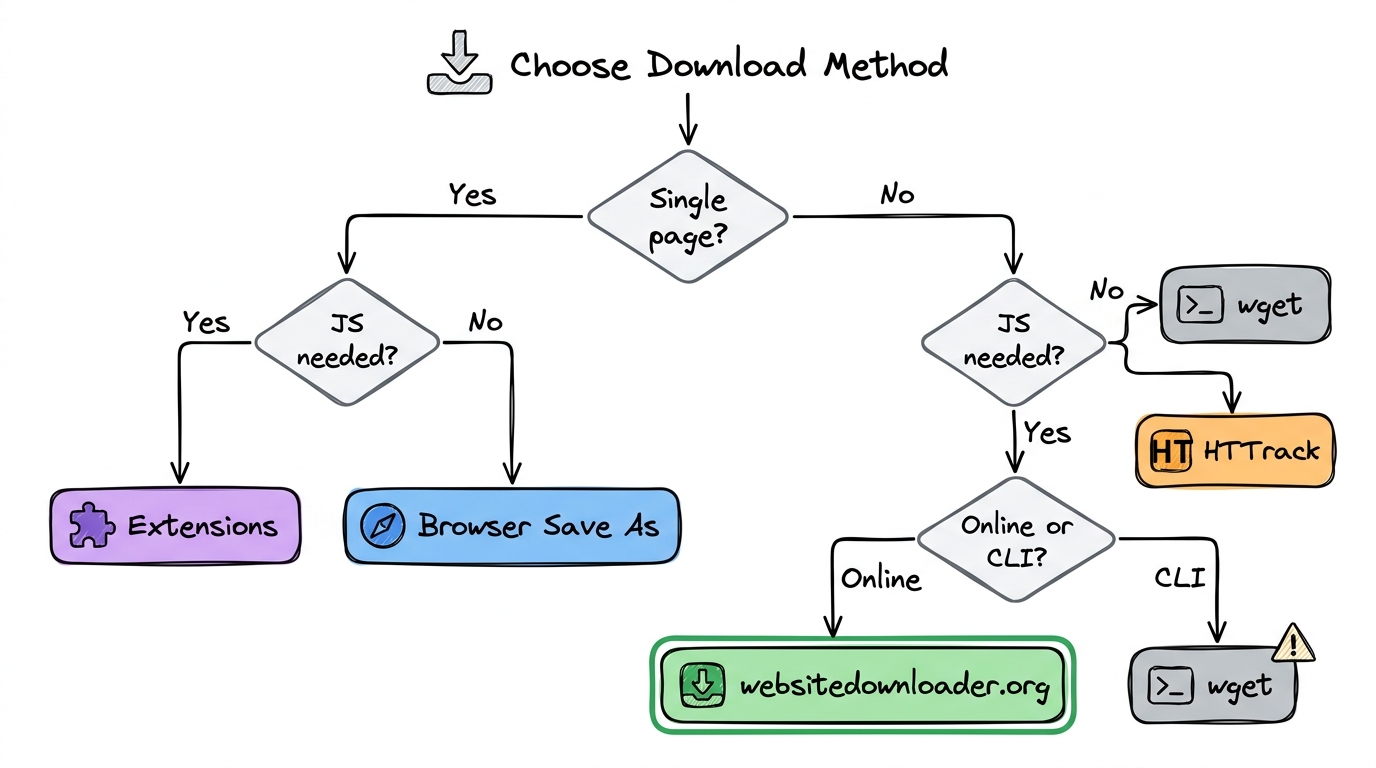
Need to download a website for offline reading, backup, development, migration, or archival? This guide covers 5 free methods to download any website — from quick single-page saves to complete multi-page site downloads. Each method has different strengths, and we'll help you pick the right one.
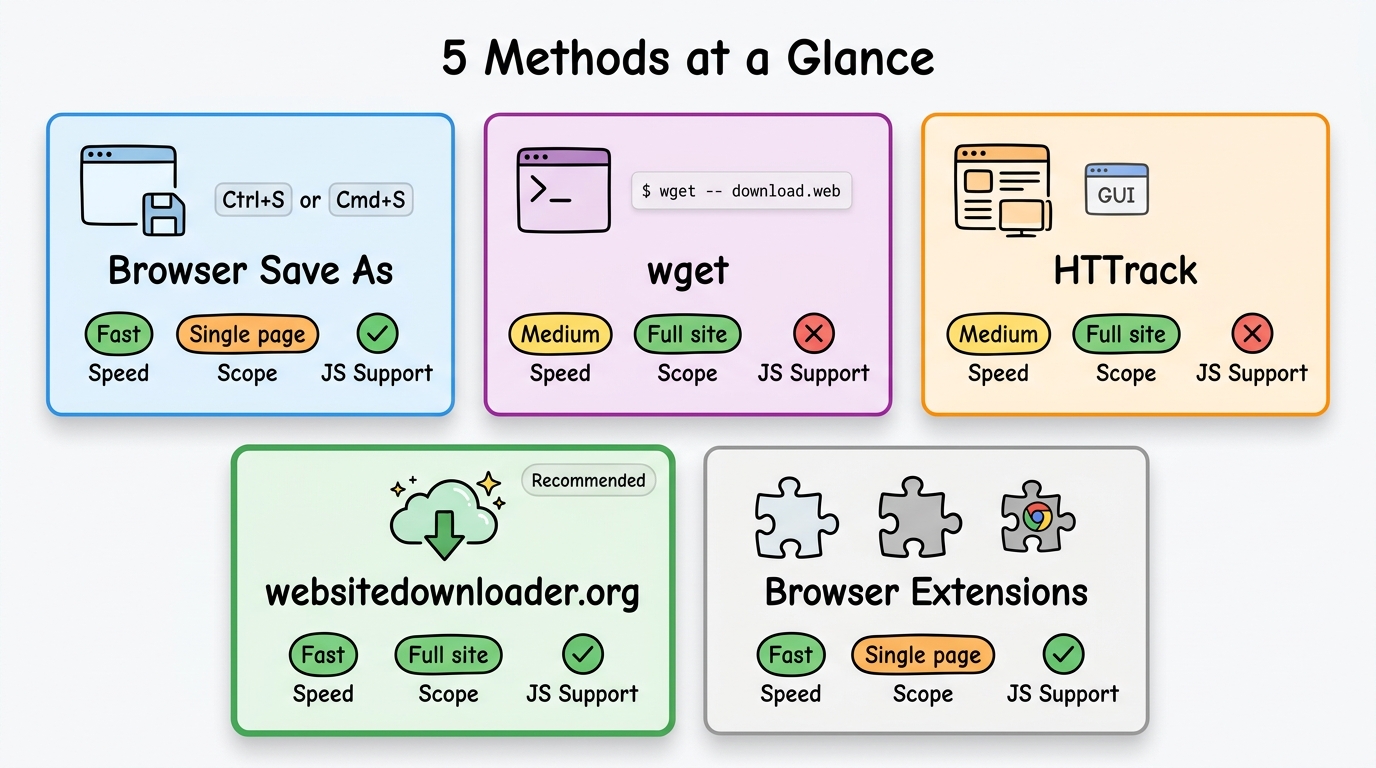
Method 1: Browser "Save As" — Quick Single Pages
The fastest way to download a single web page is your browser's built-in Save feature:
- Open the page you want to save
- Press
Ctrl+S(Windows/Linux) orCmd+S(Mac) - Choose "Webpage, Complete" to include images and CSS
- Pick a save location and click Save
Pros: Instant, no tools needed, preserves the current page state.
Cons: Only saves one page at a time. Misses linked pages, lazy-loaded images, and assets loaded by JavaScript on complex sites. Not suitable for downloading an entire website.
Method 2: wget Command — Power User Favorite
wget is a free command-line tool available on Linux, macOS, and Windows (via WSL or standalone binary). It can recursively download entire websites:
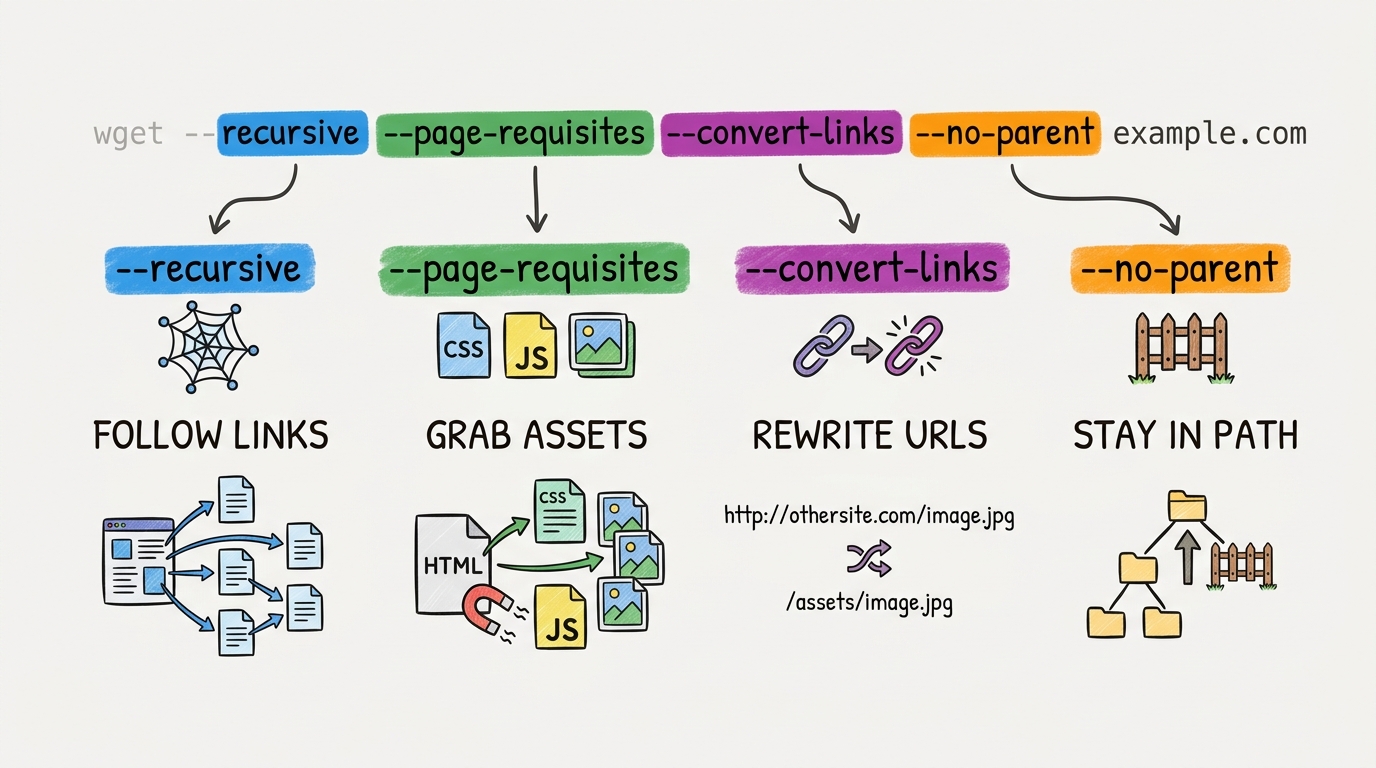
wget --recursive --page-requisites --convert-links --no-parent https://example.comWhat each flag does:
--recursive— Follow links and download linked pages--page-requisites— Also download CSS, JS, and images needed per page--convert-links— Rewrite URLs so the site works offline--no-parent— Don't crawl above the starting URL path
Pros: Free, scriptable, great for automation with cron jobs.
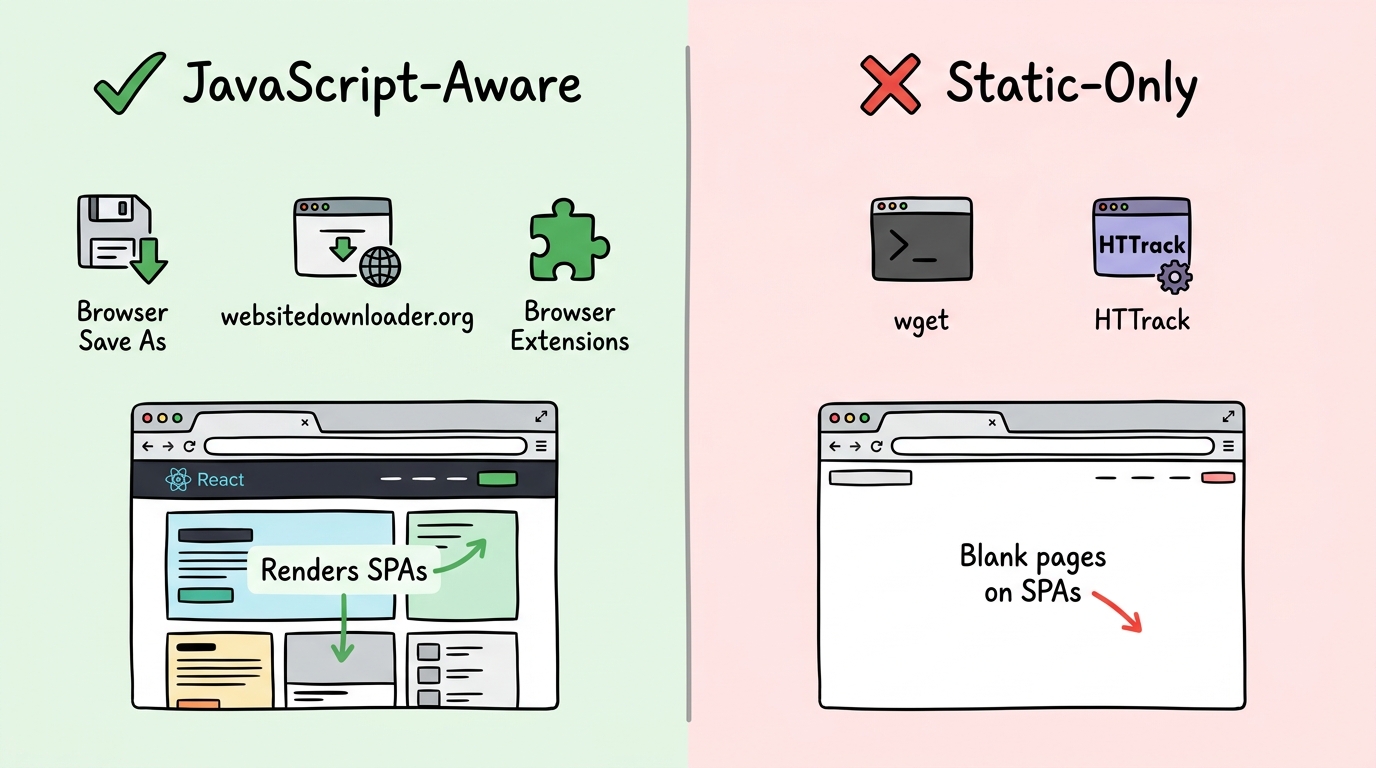
Cons: Cannot execute JavaScript — downloads blank pages from React, Vue, and Angular sites. Steep learning curve for beginners.
Method 3: HTTrack — Desktop GUI
HTTrack is a free, open-source desktop application with a graphical wizard interface. You select the URL, set options, and it crawls the site:
- Download and install HTTrack from httrack.com
- Launch the wizard and enter the website URL
- Configure crawl depth, file filters, and connection limits
- Start the download and wait for completion
Pros: User-friendly GUI, good for non-technical users, supports scheduled downloads.
Cons: Last updated in 2006. Cannot render JavaScript — fails on modern React, Vue, and Angular sites. Difficult to install on macOS.
Method 4: websitedownloader.org — Modern Online Tool
websitedownloader.org is a free online website downloader that handles modern JavaScript-rendered sites:
- Go to websitedownloader.org
- Paste the website URL
- Click "Download"
- Enter your email to receive the ZIP file
- Extract the ZIP and browse offline
Pros: Renders JavaScript with headless Chrome, works with React/Vue/Angular, no installation needed, free.
Cons: Requires an internet connection to start the download. For unlimited downloads and custom configurations, use the websnap CLI.
Method 5: Browser Extensions (SingleFile, Save Page WE)
Browser extensions can save web pages directly from your browser:
- SingleFile — Saves the entire page (including rendered JavaScript content) as a single HTML file. Great for archiving articles and blog posts.
- Save Page WE — Similar to SingleFile but with more configuration options for handling embedded content.
Pros: Can capture JavaScript-rendered content since the browser has already rendered it. Easy one-click saves.
Cons: Only saves one page at a time. Not suitable for downloading entire multi-page websites.
Comparison Table
| Method | Speed | Completeness | JS Support | Free |
|---|---|---|---|---|
| Browser Save As | Fast | Single page | ✓ | ✓ |
| wget | Medium | Full site | ✗ | ✓ |
| HTTrack | Medium | Full site | ✗ | ✓ |
| websitedownloader.org | Fast | Full site | ✓ | ✓ |
| Browser extensions | Fast | Single page | ✓ | ✓ |
Common Problems When Downloading Websites
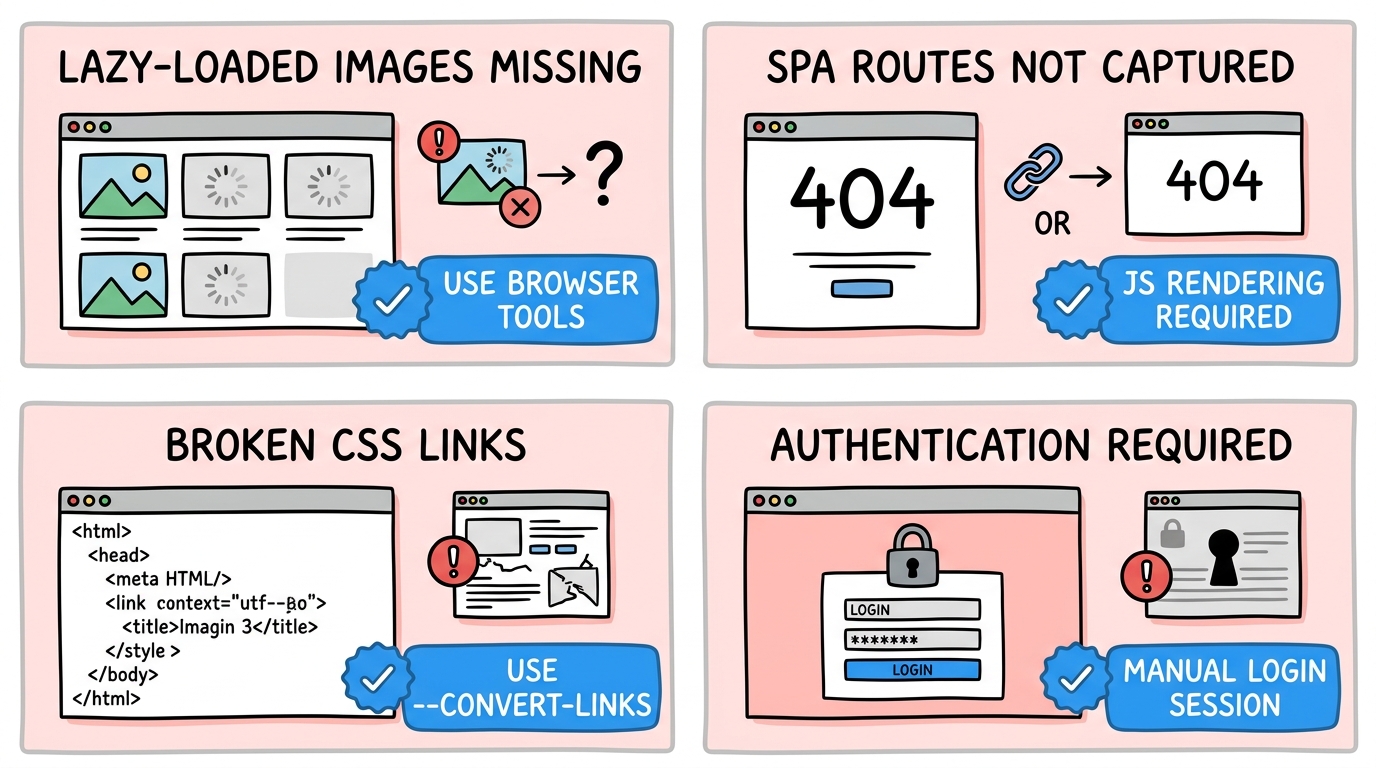
- Lazy-loaded images missing — Images that load on scroll require a real browser to trigger. Only browser-based tools (websitedownloader.org, extensions) capture these.
- SPA routes not captured — Single-page applications use client-side routing. Traditional crawlers like wget and HTTrack cannot navigate these routes. Use a JavaScript-aware tool for SPAs.
- CSS breakage — Relative URLs in CSS may break when files are reorganized during download. Tools with
--convert-links(wget) or built-in link rewriting handle this best. - Authentication walls — Pages behind logins cannot be downloaded without session cookies. Most tools don't support multi-step auth flows.
FAQ
Can I download a website on my phone?
Yes. Use an online tool like websitedownloader.org from your phone's browser — paste the URL and download the ZIP file. There's no app to install. For saving individual pages, most mobile browsers have a "Save Page" or "Reading List" option, but these don't capture full multi-page sites.
Will downloading a website copy the backend too?
No. Downloading a website only captures the frontend — what you see in the browser. This includes HTML, CSS, JavaScript, images, and fonts. Server-side code (PHP, Python, Node.js), databases, APIs, and environment variables are not accessible or downloadable. You get a static snapshot of the rendered pages.
How long does it take to download a large website?
It depends on the site's size and your method. A small site (under 50 pages) typically takes 1-5 minutes. A medium site (50-500 pages) takes 10-30 minutes. Large sites (500+ pages) can take hours, especially with polite crawl delays. Browser-based tools like websitedownloader.org are faster because they run on cloud infrastructure.
Related Resources
- Best website downloaders 2026 — Full comparison of every tool available.
- Download entire website guide — Deep dive into downloading complete sites with all assets.
- Website backup guide — How to create reliable backups of any website.
- wget alternatives — Modern replacements for the wget command.